Set Up 9router API Proxy on VPS with PM2 and Cloudflared
Detailed guide to setting up a 9router API proxy on a VPS using PM2 and Cloudflared Tunnel. Manage multiple AI API keys (OpenAI, Anthropic, Google), rotate providers, hide credentials, and control costs.
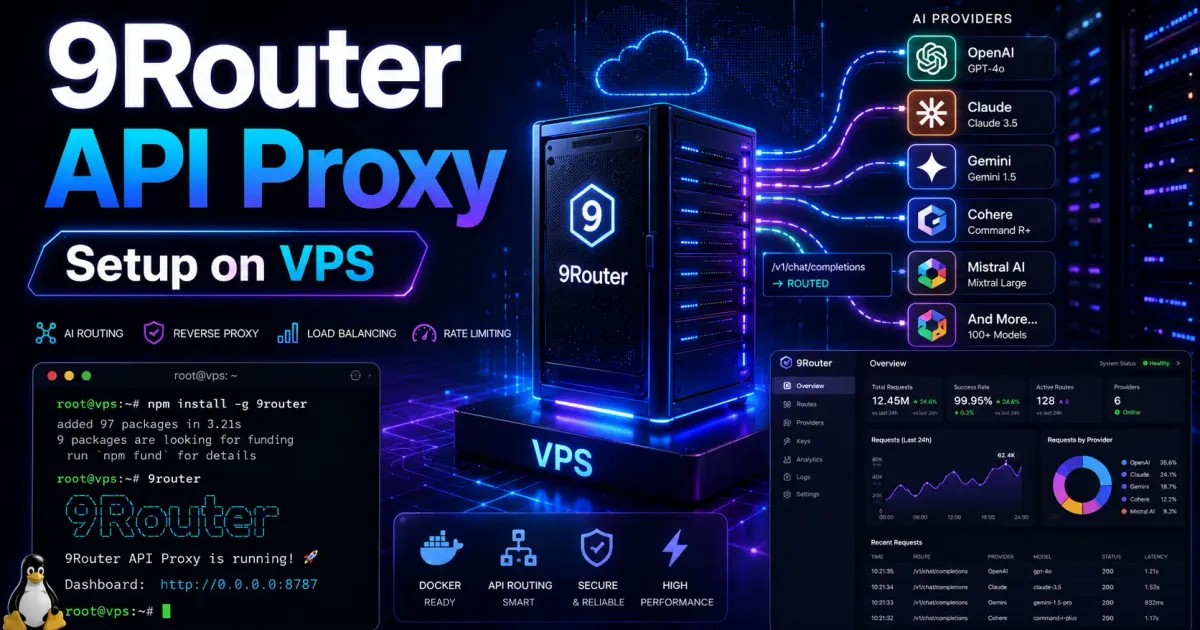
Running a proxy layer between your application and AI providers helps centralize API key management, rotate providers when hitting rate limits, and hide real credentials from clients. 9router does exactly that.
This article gives a detailed walkthrough to set up 9router on a VPS, using PM2 for headless mode and Cloudflared Tunnel to expose the service externally without opening ports.
Why Use an API Proxy?
- Rotate API keys — Automatically switch to backup keys when the primary key runs out of quota
- Hide credentials — Clients only know your endpoint, never your real key
- Manage rate limits — Distribute requests across multiple providers (OpenAI, Anthropic, Google)
- Logging and control — Track usage and costs by project
Requirements
- Linux VPS (Ubuntu/Debian)
- Node.js ≥ 18
- PM21 (process manager)
- Cloudflared2 (Cloudflare Tunnel)
- Port 20128 open locally
Installation
# Install Node.js via nvmcurl -o- https://raw.githubusercontent.com/nvm-sh/nvm/v0.39.0/install.sh | bashnvm install --lts
# Install 9routernpm install -g 9router
9router: npm package | Documentation
Check version:
9router --version # 0.4.20+Run on VPS
A VPS has no GUI, so run in headless mode:
9router --headlessRun persistently with PM2 (recommended):
npm install -g pm2
pm2 start $(which 9router) --name 9router -- -tpm2 startuppm2 save
Output:
🚀 9router v0.4.20Server: http://localhost:20128💡 Router is now running in headless mode.Test immediately:
curl http://localhost:20128/v1/modelsCheck status:
pm2 listpm2 logs 9routerConfigure API Keys
Open the Web UI (http://vps-ip:20128) or configure via API. Add provider keys:
- OpenAI:
sk-... - Anthropic:
sk-ant-... - Google:
AIza...
9router automatically chooses a provider based on the model in each request.
Access from Outside
Use Cloudflare Tunnel (recommended)
Cloudflared does not require opening ports, and proxying through Cloudflare is safer:
# Install cloudflaredcurl -L https://github.com/cloudflare/cloudflared/releases/latest/download/cloudflared-linux-amd64 -o /usr/local/bin/cloudflaredchmod +x /usr/local/bin/cloudflared
# Create tunnelcloudflared tunnel create 9router
# Run tunnelcloudflared tunnel run --url http://localhost:20128 9router
Reference: Cloudflare Tunnel Guide
Tunnel management
# List tunnelscloudflared tunnel list
# Create new tunnelcloudflared tunnel create <tunnel-name>
# Delete tunnelcloudflared tunnel delete <tunnel-name-or-id>
# Check running tunnelcloudflared tunnel info <tunnel-name>
# Run tunnel (quick run)cloudflared tunnel run <tunnel-name>
# Run with specific config filecloudflared tunnel --config /etc/cloudflared/config.yml run <tunnel-name>
# Check connection (from local)curl -I https://proxy.yourdomain.com
Run as service vs quick run
Quick run — run directly, config at ~/.cloudflared/config.yml:
cloudflared tunnel run 9routerService (production) — run as a systemd service, config at /etc/cloudflared/:
# Move credentials filesudo mv ~/.cloudflared/<tunnel-id>.json /etc/cloudflared/sudo chown root:root /etc/cloudflared/<tunnel-id>.jsonsudo chmod 600 /etc/cloudflared/<tunnel-id>.jsonCreate config file with template below
sudo nano /etc/cloudflared/config.ymlConfig file for service: /etc/cloudflared/config.yml (not ~/.cloudflared/)
tunnel: <tunnel-name>credentials-file: /etc/cloudflared/<tunnel-id>.jsonprotocol: http2metrics: 127.0.0.1:9090retries: 5grace-period: 30s
ingress:  - hostname: proxy.yourdomain.com    service: http://127.0.0.1:20128    originRequest:      connectTimeout: 30s      tlsTimeout: 30s      tcpKeepAlive: 30s      keepAliveConnections: 100      keepAliveTimeout: 90s      noTLSVerify: true      httpHostHeader: proxy.yourdomain.com      disableChunkedEncoding: false  - service: http_status:404
Then save and run these commands to validate config:
cloudflared tunnel ingress validate# or with specific config filecloudflared tunnel --config /etc/cloudflared/config.yml validate# if errors occur, inspect details withjournalctl -u cloudflared -fInstall service
sudo cloudflared service installCheck service:
sudo systemctl status cloudflaredsudo systemctl restart cloudflaredjournalctl -u cloudflared -fNote: The credentials file contains sensitive secrets — place it in
/etc/cloudflared/with600permissions and ownership byroot.
Use cloudflared as service:
sudo systemctl enable cloudflaredsudo systemctl start cloudflaredDomain mapping
# Log in to cloudflaredcloudflared tunnel loginThen create a DNS record pointing your subdomain (for example: proxy.yourdomain.com in the config file):
cloudflared tunnel route dns <tunnel-name-or-tunnel-id> proxy.yourdomain.comOpen port directly (not recommended)
sudo ufw allow 20128With this approach, endpoint becomes http://vps-ip:20128.
Use in your application
Change endpoint from original provider to your proxy:
# Beforecurl https://api.openai.com/v1/chat/completions \  -H "Authorization: Bearer sk-xxxx"
# After (using URL from cloudflared tunnel)curl https://proxy.yourdomain.com/v1/chat/completions \  -H "Authorization: Bearer sk-xxxx"
Or set an environment variable:
export OPENAI_API_BASE="https://proxy.yourdomain.com/v1"Check status
pm2 status # Check both 9router and cloudflared tunnelpm2 logs 9router # 9router logsReferences
- 9router Official Documentation
- 9router GitHub Repository
- 9router npm Package
- PM2 Documentation
- Cloudflare Tunnel Documentation
- Cloudflare Zero Trust Documentation
Conclusion
With a small VPS, 9router, PM2, and Cloudflared, you get a production-ready API proxy to manage AI keys, distribute requests, and control costs — without opening ports or needing a VPN.
Advantages compared to other solutions:
- No Cloudflare Worker cost
- No need to point domain directly to VPS
- Safer because traffic goes through Cloudflare
- Full control with a low-cost VPS